

User Access & Permissions
Spacebase includes highly configurable and granular user permission settings designed to support strong internal controls and appropriate segregation of duties across accounting, real estate, and operational teams. User roles and permissions can be tailored to limit access based on responsibilities, allowing organizations to control who can view, create, edit, approve, or export specific data and workflows within the platform. This flexibility helps organizations align system access with their internal control framework, reduce the risk of unauthorized changes, and support audit and compliance requirements, including SOX-related control environments.How are users, access, and permissions managed in Spacebase?
Users are managed in the following ways:- Access via SSO / SAML setup or with a username or password.
- Permissions via Group-level permission settings and by User-level permission settings.
How do I add a new user to my account?
Open the Users tab
Click on the Create User button in the top right of the page
Enter the user's details
Assign a group
Send the invitation
How do I reactivate a removed user?
Navigate to the Company page from the main sidebar menu
Click View removed users
Click on the user account that you would like to re-activate
Click the Re-activate User button
How do I change a user’s permissions?
There are two methods to changing permissions:- Updating the permissions for the Group.
- Updating the user’s individual permissions (Object Access).
Open the Users tab
Click on the Groups tab at the top of the page
Select the row of the Group name you wish to change permissions for
Select Edit Group in the top right hand corner
Edit the group
- Name
- SAML name description
- Select or deselect granular settings options for all areas of Spacebase
Save the changes
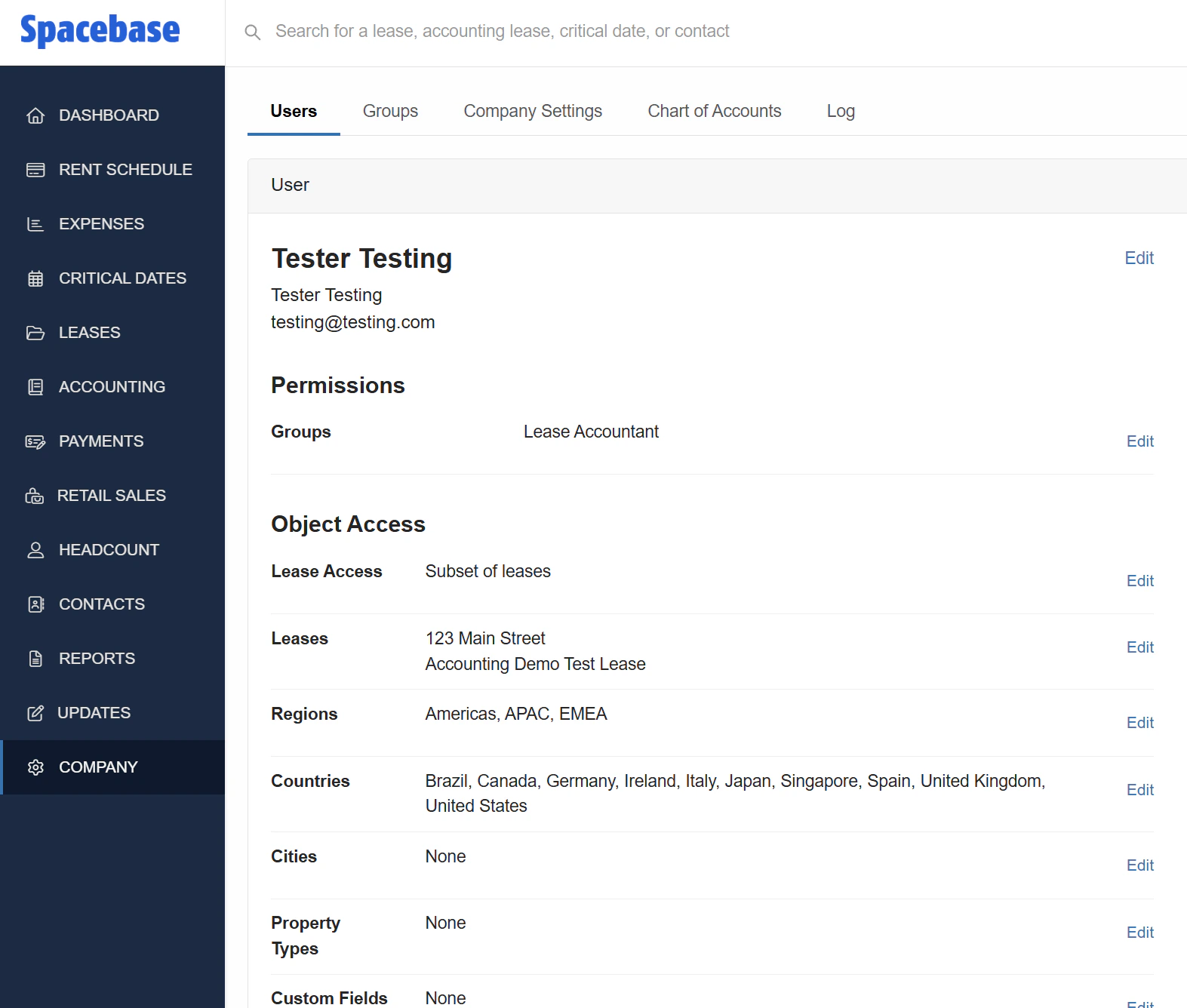
Open the Users tab
Select the row with the user's name
Click Edit beside Object Access
- Leases: Select Edit beside Leases to select specific leases this user is able to access.
- Regions: Based on the regions populated in Spacebase Leases (e.g. Americas, APAC, EMEA, etc.), select specific regions this user is able to access.
- Countries: Based on the countries populated in Spacebase Leases (e.g. Brazil, Canada, Germany, etc.), select specific countries this user is able to access.
- Cities: Based on the cities populated in Spacebase Leases (e.g. Atlanta, Barcelona, Seattle, etc.), select specific cities this user is able to access.
- Property Types: Based on the property types populated in Spacebase Leases (e.g. Office, Data Center, Land, etc.), select specific property types this user is able to access.
- Custom Fields: Based on the custom fields populated in Spacebase Leases (e.g. GL Codes, Business Segments, etc.), select specific custom fields this user is able to access.
What Groups are available to manage users and user permissions?
Depending on your organization’s internal controls and processes, you may wish to create Custom Groups by clicking on the Create Group button on the Groups page. The following groups are available by default in your account:- Read-Only: Can view lease data.
- Portfolio Admin: Can create, update, and view lease data.
- Lease Accountant - Read-Only: Can view lease data and accounting lease data.
- Lease Accountant: Can create, update, and view lease data and accounting lease data.
- Lease Accountant - Review Leases: Can create, update, and view lease data and accounting lease data, as well as review leases.
- Lease Accountant - Approve Leases: Can create, update, and view lease data and accounting lease data, as well as approve leases.
- Accounting Admin: Can create, update, and view lease data, accounting lease data, and company settings, as well as review and approve accounting leases.
- Company Admin: Can create, update, and view company settings.
- Super Admin: Can create, update, and view lease data, accounting lease data, company settings, and all modules, as well as review and approve accounting leases.
User Account Settings
Under Account Settings you can:- Update your email address
- Update your password
- Update various settings
Open the Account drop-down
Select Account Settings from the list
Select Update Settings in the top left hand corner of the Account Settings page
Make updates
- First name
- Last name
- Title
- Default Currency
- Select or deselect Display lease expenses in local currency by default
- Define the Default area units (e.g. Square Feet)
- Select or deselect Always display lease size in local unit of measurement by default
- Time zone
- Email notifications (enabled or disabled)
- Avatar color
Configure Important Date Categories
- Available important date categories and Chosen important date categories.
- Choose important date categories by selecting them and then select the Choose arrow button.
- Remove important date categories by selecting them and then select the Remove arrow button.
Configure Email Notifications
- Critical dates weekly digest
- Recurring leases weekly summary
- Lease published
- Lease file uploaded
- Lease abstraction begins
- Issue added to lease
- Accounting lease moved to needs review
- Accounting lease approved
- Payments module alerts
- Filter critical dates email by specific categories
Confirm changes